# Getting Started with GCP on Prowler Cloud/App
Set up your GCP project to enable security scanning using Prowler Cloud/App.
## Requirements
To configure your GCP project, you’ll need:
1. Get the `Project ID`
2. Access to Prowler Cloud/App
3. Configure authentication in GCP:
3.1 Retrieve credentials from Google Cloud
4. Add the credentials to Prowler Cloud/App
---
## Step 1: Get the Project ID
1. Go to the [GCP Console](https://console.cloud.google.com/)
2. Locate your Project ID on the welcome screen

---
## Step 2: Access Prowler Cloud/App
1. Go to [Prowler Cloud](https://cloud.prowler.com/) or launch [Prowler App](../prowler-app.md)
2. Navigate to `Configuration` > `Cloud Providers`

3. Click `Add Cloud Provider`

4. Select `Google Cloud Platform`

5. Add the Project ID and optionally provide a provider alias, then click `Next`

---
## Step 3: Configure Authentication in GCP
### Retrieve Credentials from Google Cloud
1. In the [GCP Console](https://console.cloud.google.com/), click on `Activate Cloud Shell`

2. Click `Authorize Cloud Shell`

3. Run the following command:
```bash
gcloud auth application-default login
```
- Type `Y` when prompted

4. Open the authentication URL provided in a browser and select your Google account

5. Follow the steps to obtain the authentication code
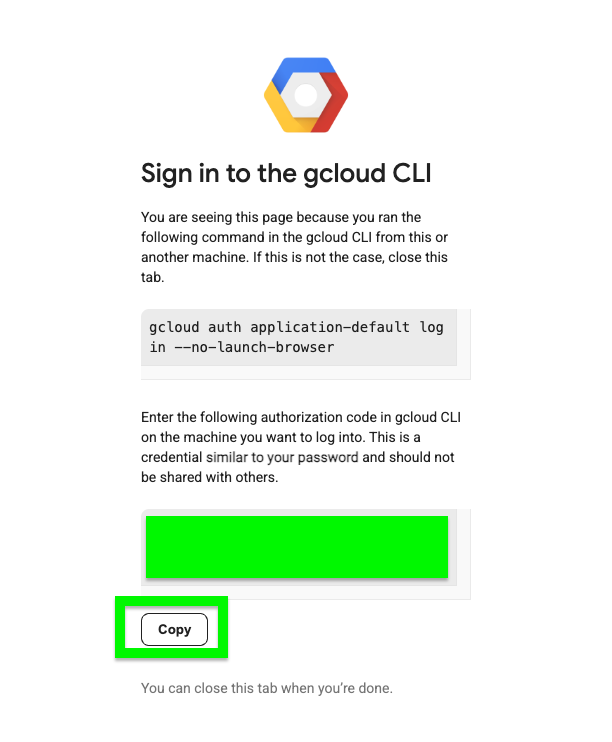
6. Paste the authentication code back in Cloud Shell
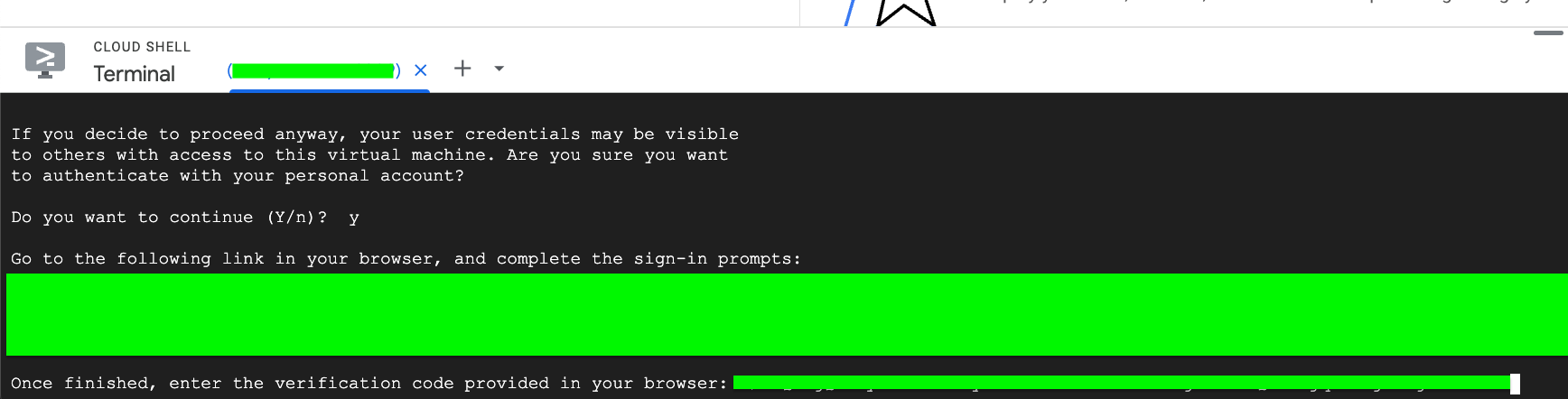
7. Use `cat ` to view the temporary credentials file

8. Extract the following values for Prowler Cloud/App:
- `client_id`
- `client_secret`
- `refresh_token`

---
## Step 4: Add Credentials to Prowler Cloud/App
1. Go back to Prowler Cloud/App and enter the required credentials, then click `Next`

2. Click `Launch Scan` to begin scanning your GCP environment
