 Andoni Alonso
3.8 KiB
Getting Started With AWS on Prowler
Prowler App
Walkthrough video onboarding an AWS Account using Assumed Role.
Step 1: Get Your AWS Account ID
- Log in to the AWS Console
- Locate your AWS account ID in the top-right dropdown menu

Step 2: Access Prowler Cloud or Prowler App
-
Navigate to Prowler Cloud or launch Prowler App
-
Go to "Configuration" > "Cloud Providers"

-
Click "Add Cloud Provider"

-
Select "Amazon Web Services"

-
Enter your AWS Account ID and optionally provide a friendly alias

-
Choose the preferred authentication method (next step)
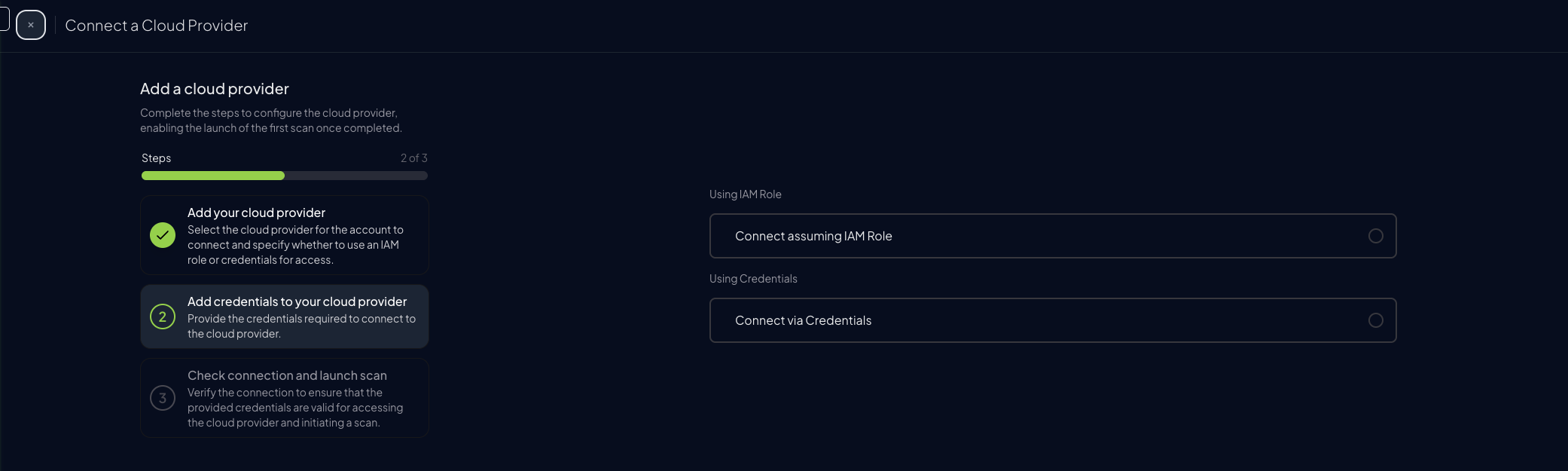


Step 3: Set Up AWS Authentication
Before proceeding, choose the preferred authentication mode:
Credentials
- Quick scan as current user
- No extra setup
- Credentials time out
Assumed Role
- Preferred Setup
- Permanent Credentials
- Requires access to create role
Assume Role (Recommended)
This method grants permanent access and is the recommended setup for production environments.

For detailed instructions on how to create the role, see Authentication > Assume Role.
-
Once the role is created, go to the IAM Console, click on the "ProwlerScan" role to open its details:

-
Copy the Role ARN

-
Paste the ARN into the corresponding field in Prowler Cloud or Prowler App

-
Click "Next", then "Launch Scan"


Credentials (Static Access Keys)
AWS accounts can also be configured using static credentials (not recommended for long-term use):

For detailed instructions on how to create the credentials, see Authentication > Credentials.
-
Complete the form in Prowler Cloud or Prowler App and click "Next"

-
Click "Launch Scan"

Prowler CLI
Configure AWS Credentials
To authenticate with AWS, use one of the following methods:
aws configure
or
export AWS_ACCESS_KEY_ID="ASXXXXXXX"
export AWS_SECRET_ACCESS_KEY="XXXXXXXXX"
export AWS_SESSION_TOKEN="XXXXXXXXX"
These credentials must be associated with a user or role with the necessary permissions to perform security checks.
More details on Assume Role settings from the CLI in Assume Role page.
AWS Profiles
To use a custom AWS profile, specify it with the following command:
prowler aws -p/--profile <profile_name>
Multi-Factor Authentication (MFA)
For IAM entities requiring Multi-Factor Authentication (MFA), use the --mfa flag. Prowler prompts for the following values to initiate a new session:
- ARN of your MFA device
- TOTP (time-based one-time password)